The TUI
Copia ships with a fully interactive terminal interface. Once launched, everything happens inside the TUI — no extra commands needed.
Layout
The interface is divided into three areas:
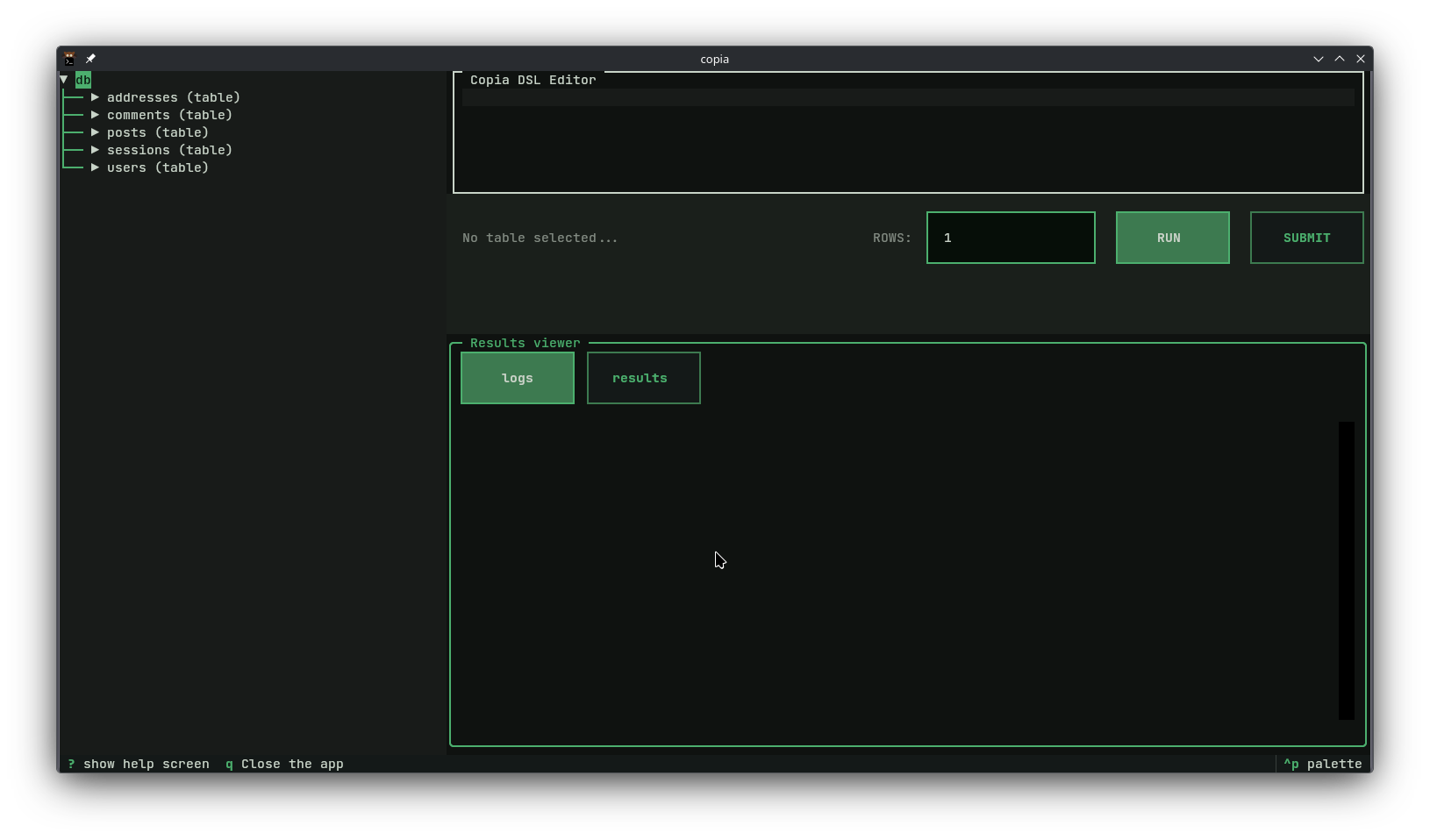
┌─────────────────┬──────────────────────────────────┐
│                 │  Copia DSL Editor                │
│  Database tree  │                                  │
│                 ├──────────────────────────────────┤
│                 │ Action bar (table, rows, buttons)│
│                 ├──────────────────────────────────┤
│                 │  Results viewer (logs / results) │
└─────────────────┴──────────────────────────────────┘
Database tree — lists all tables in your database. Expand a table to see its columns and their types. Click a table to select it as the insert target.
DSL Editor — write your seed definition here. One line per column, using the Copia DSL.
Action bar — shows the selected table, a row count input, and the Run and Submit buttons.
Results viewer — displays logs and generated rows. Switch between the logs and results tabs.
Workflow
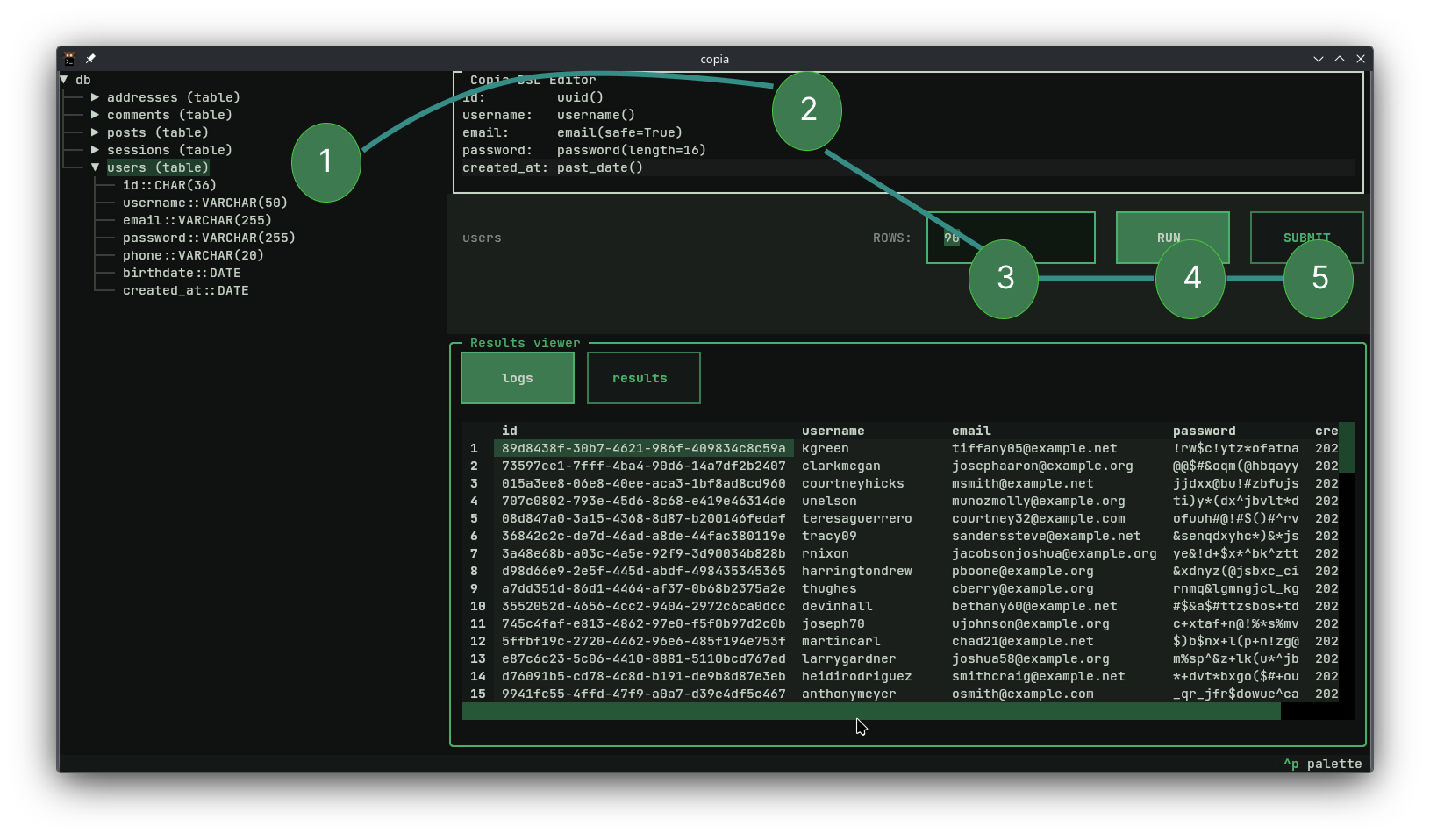
1. Select a table
Click a table in the database tree on the left. Its name will appear in the action bar. Expanding the table shows its columns and types — useful for knowing which generators to use.
2. Write your seed
Type your seed definition in the DSL editor:
id:         uuid()
username:   username()
email:      email(safe=True)
password:   password(length=16)
created_at: past_date()
Press ? to open the help screen — it lists all available generators and the full DSL reference.
3. Set the row count
In the action bar, set how many rows you want to generate. Defaults to 1.
4. Run
Click Run. Copia parses your input, validates it, and streams the generated rows into the results viewer. Switch to the results tab to preview the data.
If generation is taking too long, a Cancel button appears to stop it mid-stream.
5. Submit
Once satisfied with the preview, click Submit. Copia inserts the generated rows into the selected table.
Warning
Anonymous columns (columns without a name, e.g. : uuid()) cannot be submitted — copia has no way to map them to a real column. Name all columns before submitting.
Generation Settings
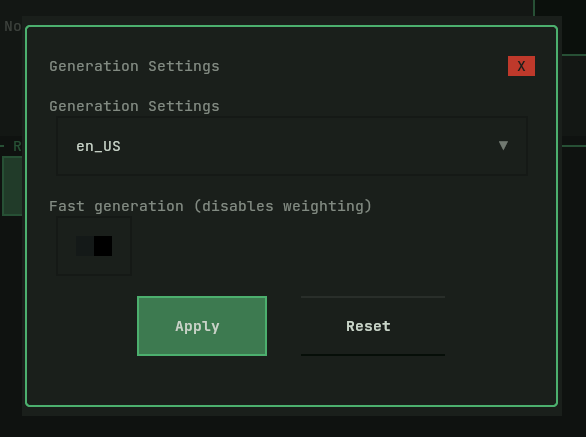
Press s to open the Generation Settings screen.
Locale — sets the locale used by locale-dependent generators. Changing the locale mid-generation affects all rows generated after the change. Defaults to en_US.
Fast generation — when enabled, disables Faker's value weighting. Generation is faster but the dataset no longer follows real-world frequencies. Useful for large row counts where performance matters more than realism.
Use Reset to revert the controls to the last applied settings. Use Apply to confirm. Press Escape or click X to close without applying.
Keybindings
| Key | Action |
|---|---|
? |
Open the help screen |
Escape |
Close the help screen |
q |
Quit copia |
Ctrl + p |
Open the command palette |
Help screen
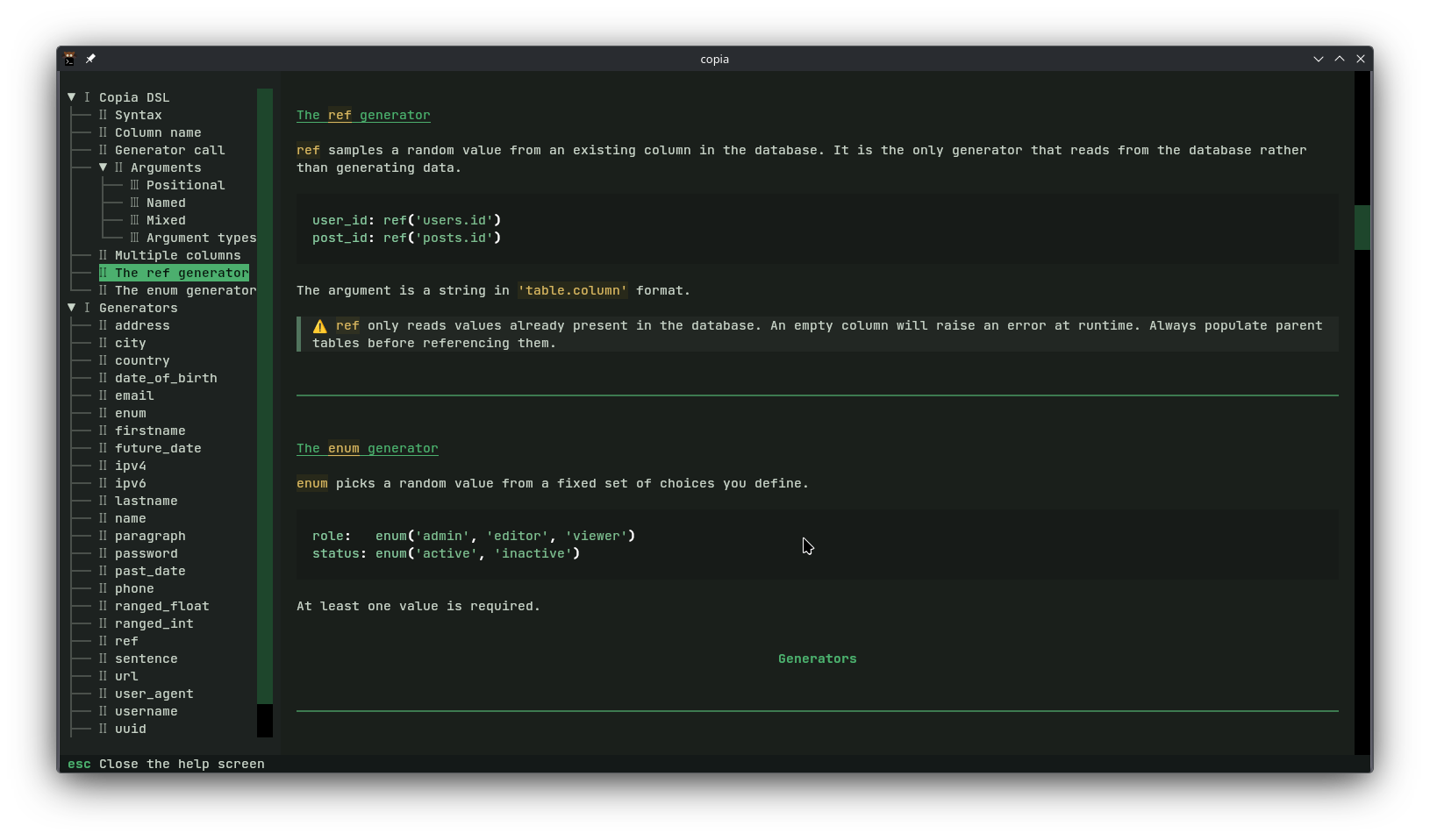
Press ? at any time to open the help screen. It contains:
- The full DSL reference — syntax, argument types, examples
- The generators reference — every available generator with its signature, parameters, and return type
Press Escape or q to close it and return to the editor.